
Claude Code Part1: An Introduction
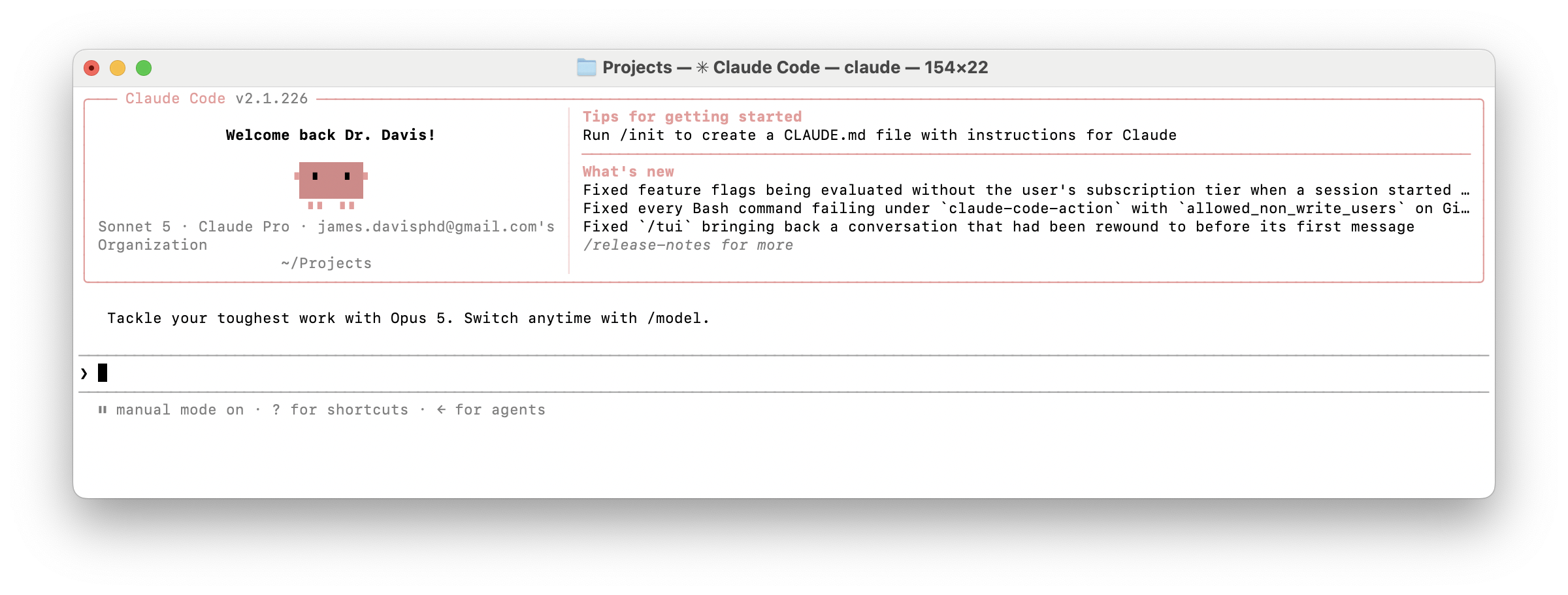
When I was in the Army, we had a saying about good soldiers: you didn’t have to tell them how to do something, just what needed to get done and why it mattered. They would figure out the rest, come back with questions if something didn’t add up, and get the job done. That is roughly the mental model I want you to have walking into this series. Not a chatbot that answers questions in a side panel. Something closer to a capable junior developer who lives in your terminal, reads your entire codebase before opening their mouth, and can actually take action, not just talk about it.
That tool is Claude Code, and this is the first post in a three-part series where I’ll walk through what it is, how to get it running, and how to actually put it to work on real projects. This post is the introduction. By the end of it, you’ll have Claude Code installed and you’ll understand the shape of what it can do. The next two posts get hands-on: building a feature end to end, and then wiring it into your broader workflow with git, MCP, and automation.
What Claude Code Actually Is
Most people’s first exposure to an AI coding assistant is autocomplete on steroids, or a chat window bolted onto the side of their IDE. Claude Code is a different animal. It’s an agentic coding tool: it reads your codebase, edits files directly, runs commands, and works across multiple files to get a task done, all from natural language instructions.
The distinction matters. A chatbot answers questions. An agent takes actions and checks its own work. Ask Claude Code to fix a bug, and it doesn’t just tell you where the problem probably is, it traces the issue through your codebase, identifies the root cause, writes the fix, and runs your tests to confirm it worked.
It runs on several surfaces, and they all share the same underlying engine, so your settings and project configuration follow you wherever you work:
| Interface | Best for |
|---|---|
| Terminal | The full CLI experience, editing files and running commands directly |
| VS Code | Inline diffs and @-mentions without leaving your editor |
| Desktop app | Reviewing diffs visually, running multiple sessions side by side |
| Web | Kicking off long-running tasks from a browser |
For this series, I’ll be working primarily from the terminal, since that’s where Claude Code feels most like the Unix philosophy it was built on: composable, scriptable, and happy to sit in a pipeline with your other tools.
Getting It Installed
You’ll need Node.js 18 or newer and a Claude.ai or Anthropic Console account. That’s the entire prerequisite list.
On macOS, Linux, or WSL:
curl -fsSL https://claude.ai/install.sh | bash
On Windows PowerShell:
irm https://claude.ai/install.ps1 | iex
If you’d rather go through a package manager, Homebrew and WinGet both work:
brew install --cask claude-code
Once it’s installed, drop into any project directory and start it up:
cd your-project
claude
The first time you run it, you’ll be prompted to log in. After that, you’re in a conversation with your codebase.
A Quick First Command
Once you’re inside a project, you can talk to it like you would a colleague you just handed the keys to. Here’s the kind of thing I mean:
claude "write tests for the auth module, run them, and fix any failures"
That single line is doing four things: reading the auth module, writing tests, executing them, and iterating until they pass. No copy-pasting code between a browser tab and your editor. No manually running the test suite yourself to check its work. It does the loop.
You can also just run claude with no arguments to drop into an interactive session, which is what most day-to-day work looks like, and is how I’d recommend starting out.
Why This Matters for How You Work
I have spent a fair amount of time researching and writing about blockchain and cryptographic systems, and if there is a thread that connects that work to Claude Code, it’s this: both are about trusting a system to do exactly what it says it will do, and having a way to verify that it did. Claude Code plans its approach before it acts, shows you what it’s changing, and you stay in the loop the whole way. It is not a black box making silent commits to your main branch while you’re not looking (unless you explicitly set it up to run autonomously in CI, which is a topic for a later post).
At a high level, here’s what’s coming in this series:
- Part 2: Building a real feature from scratch with Claude Code, including how to use
CLAUDE.mdto give it persistent project context so it stops asking you the same questions every session. - Part 3: Git workflows, MCP integrations, and automating recurring tasks, taking Claude Code from “helpful assistant” to “part of your pipeline.”
Conclusion
Claude Code is not another window to alt-tab into. It’s a tool that meets you in the terminal, takes real action on your codebase, and shows its work along the way. Get it installed, run one command against a real project, and see what it does with it. In the next post, we’ll go further and actually build something.